Z-Wave.Me

Contacts

info@z-wave.me

Products & Services

  • RaZberry
  • Z-Uno
  • Z-Way
  • Catalogue
  • Where to buy
  • Support
  • Contacts
Products
  • RaZberry 7
  • Z-Uno
  • Z-Wave.Me Multi-Protocol Controller
  • Z-Station
  • UZB
  • Hub
  • Zniffer / A.R.T.
  • Z-Wave.Me NFC reader
  • Z-Wave and Zigbee mPCIe adapter
  • Z-Wave.Me Z-Wave/Modbus Multisensor
Support
  • Upgrade to Trident IoT Z-Way
  • Downloads
  • UZB/RaZberry Firmwares
  • Frequently Asked Questions
  • How to report a bug?
  • Serial API commands
  • Zniffer / A.R.T.
  • Tools for Zigbee, Open Thread and Bluetooth Low Energy
  • Controller Web Tools
Where to buy
  • Become a partner
  • For consumers
Z-Way
  • Download Z-Way
  • Integrations
  • Z-Way components support
  • Z-Way version history
  • Z-Way licensing
  • Z-Way license for UZB
  • Develop Quick Intro
  • Z-Way on my Hardware
  • Z-Way API guide
  • Matter Device Commissioning
  • Matter Commissioning Test
Development Tools
About us
  • Contact
  • Reviews
News
  • Subscribe
Custom development
Works With

  • RaZberry
  • Z-Uno
  • Z-Way
  • Catalogue
  • Where to buy
  • Support
  • Contacts
    Products
    • RaZberry 7
    • Z-Uno
    • Z-Wave.Me Multi-Protocol Controller
    • Z-Station
    • UZB
    • Hub
    • Zniffer / A.R.T.
    • Z-Wave.Me NFC reader
    • Z-Wave and Zigbee mPCIe adapter
    • Z-Wave.Me Z-Wave/Modbus Multisensor
    Support
    • Upgrade to Trident IoT Z-Way
    • Downloads
    • UZB/RaZberry Firmwares
    • Frequently Asked Questions
    • How to report a bug?
    • Serial API commands
    • Zniffer / A.R.T.
    • Tools for Zigbee, Open Thread and Bluetooth Low Energy
    • Controller Web Tools
    Where to buy
    • Become a partner
    • For consumers
    Z-Way
    • Download Z-Way
    • Integrations
    • Z-Way components support
    • Z-Way version history
    • Z-Way licensing
    • Z-Way license for UZB
    • Develop Quick Intro
    • Z-Way on my Hardware
    • Z-Way API guide
    • Matter Device Commissioning
    • Matter Commissioning Test
    Development Tools
    About us
    • Contact
    • Reviews
    News
    • Subscribe
    Custom development
    Works With
  • RaZberry
  • Z-Uno
  • Z-Way
  • Catalogue
  • Where to buy
  • Support
  • Contacts
  • Z-Wave.Me
  • Support
  • Z-Way
  • Z-Way driver for iRidi
  • Share in Facebook
  • Share in Twitter

Z-Way driver for iRidi

The built-in Z-Wave.Me Z-Way driver automatically detects all devices on the controller and add them to the project. To access the controller, you need to know IP address and generate an access token.

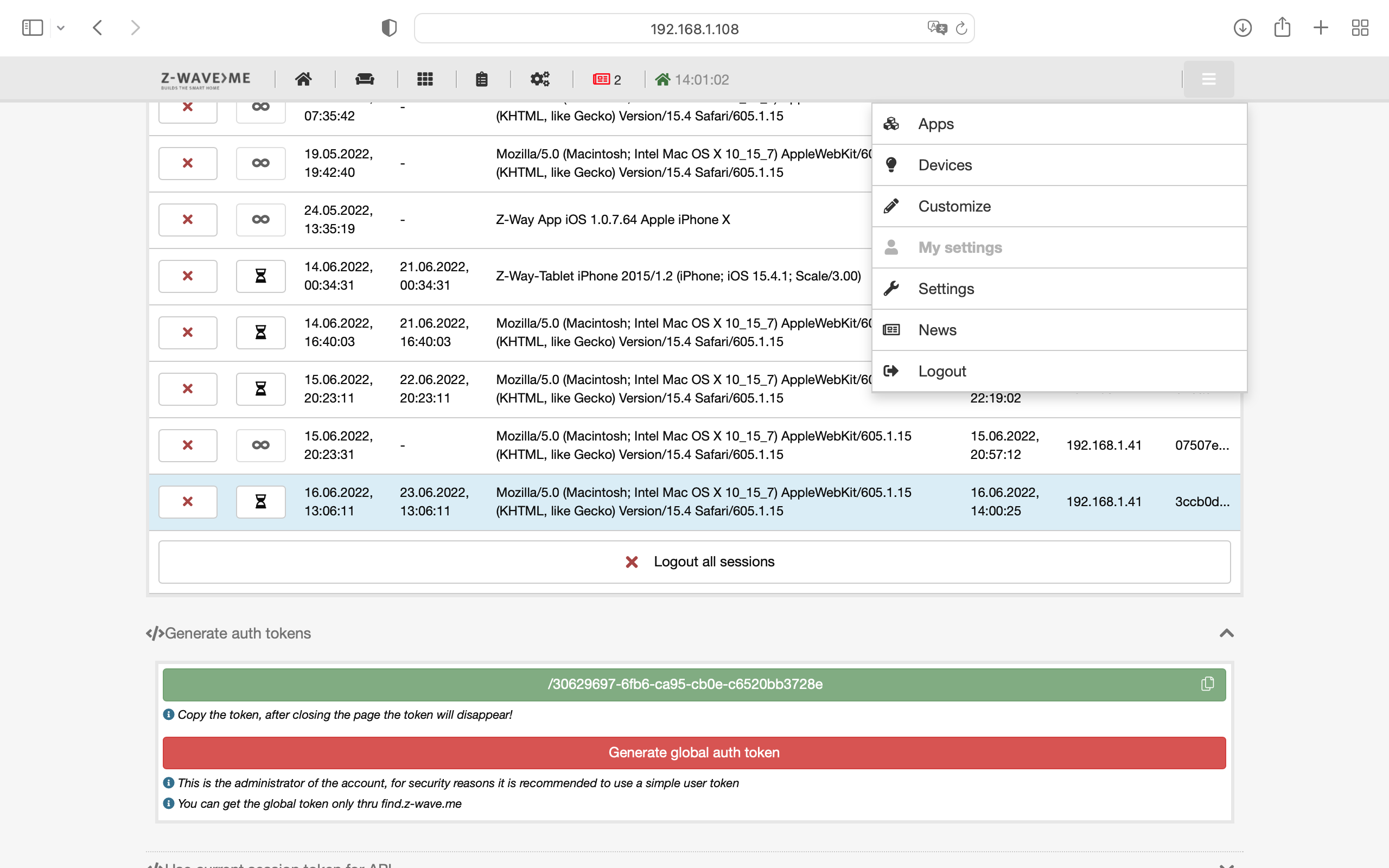
1. In the Smarthome web interface, go to Menu -> My Settings. At the bottom of the screen is the section "Generate auth tokens". In this section, you can generate a token for local and remote access.
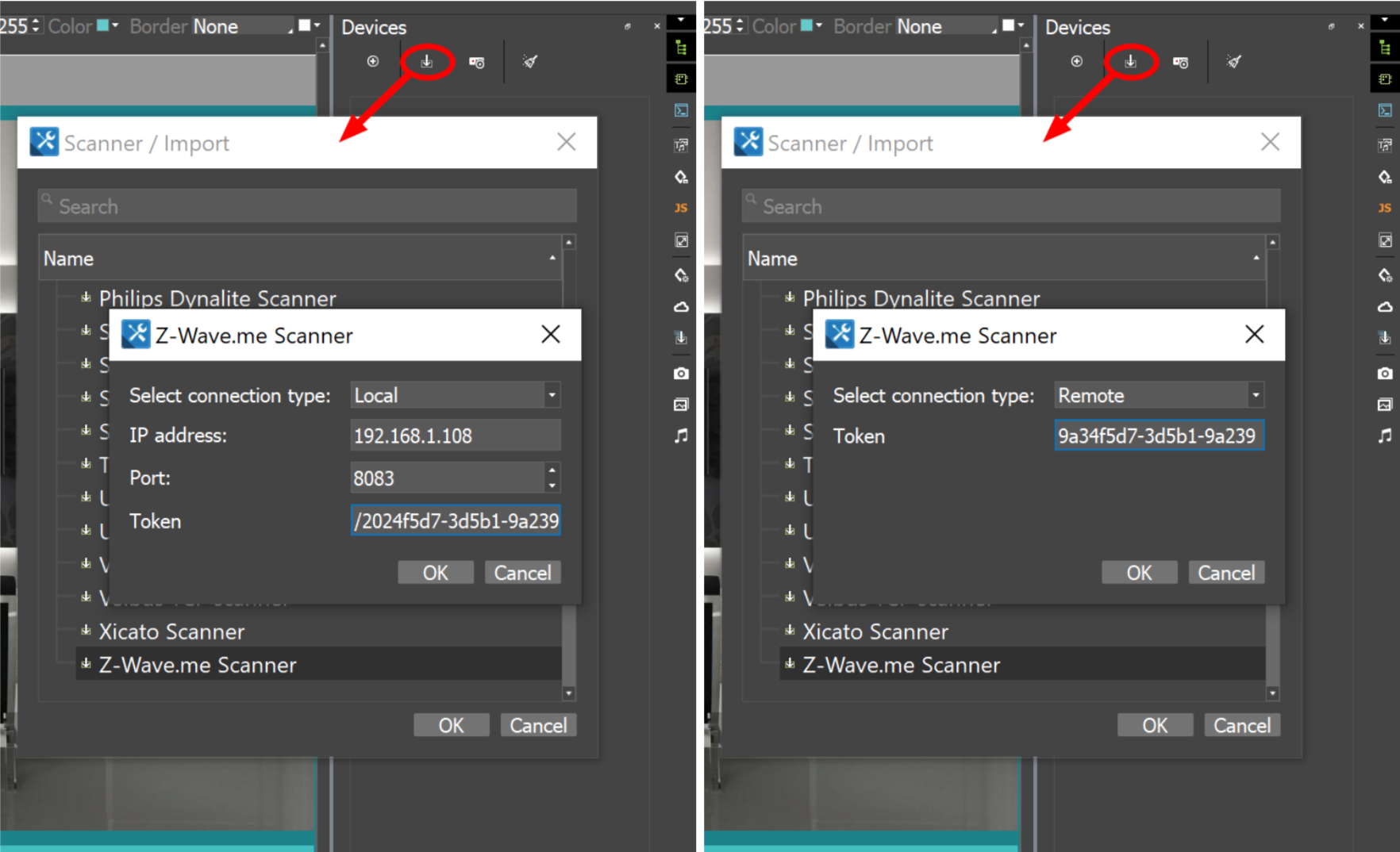
2. In iRidium Studio, in the current project, open the Scanner, select Z-Wave.Me Scanner. You can connect to the controller Locally or Remotely. To local access, enter the IP address, port and local token, for remote access, enter only the global token.
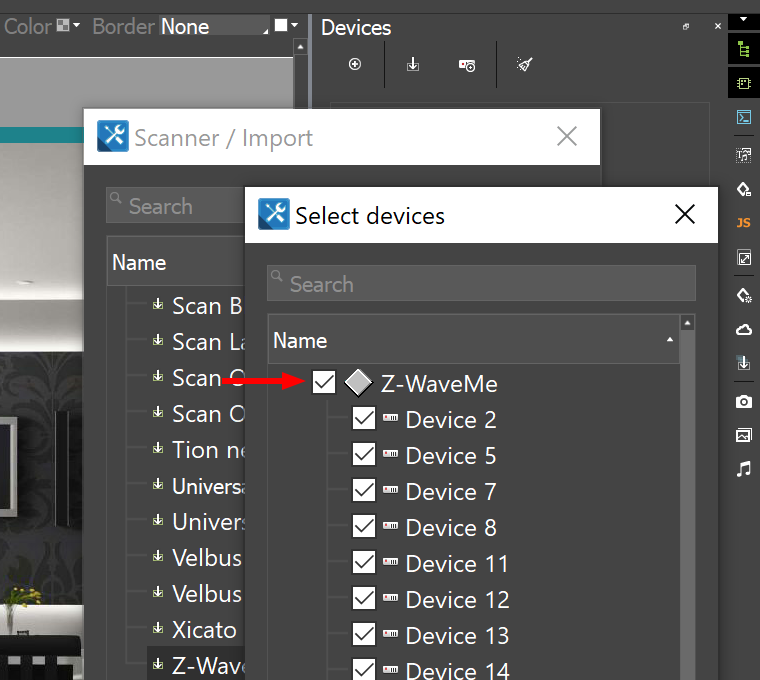
3. A list with all devices on the controller will appear, to add all devices to the project, check the box next to Z-Wave.Me.
Example of setup a widget for relay control

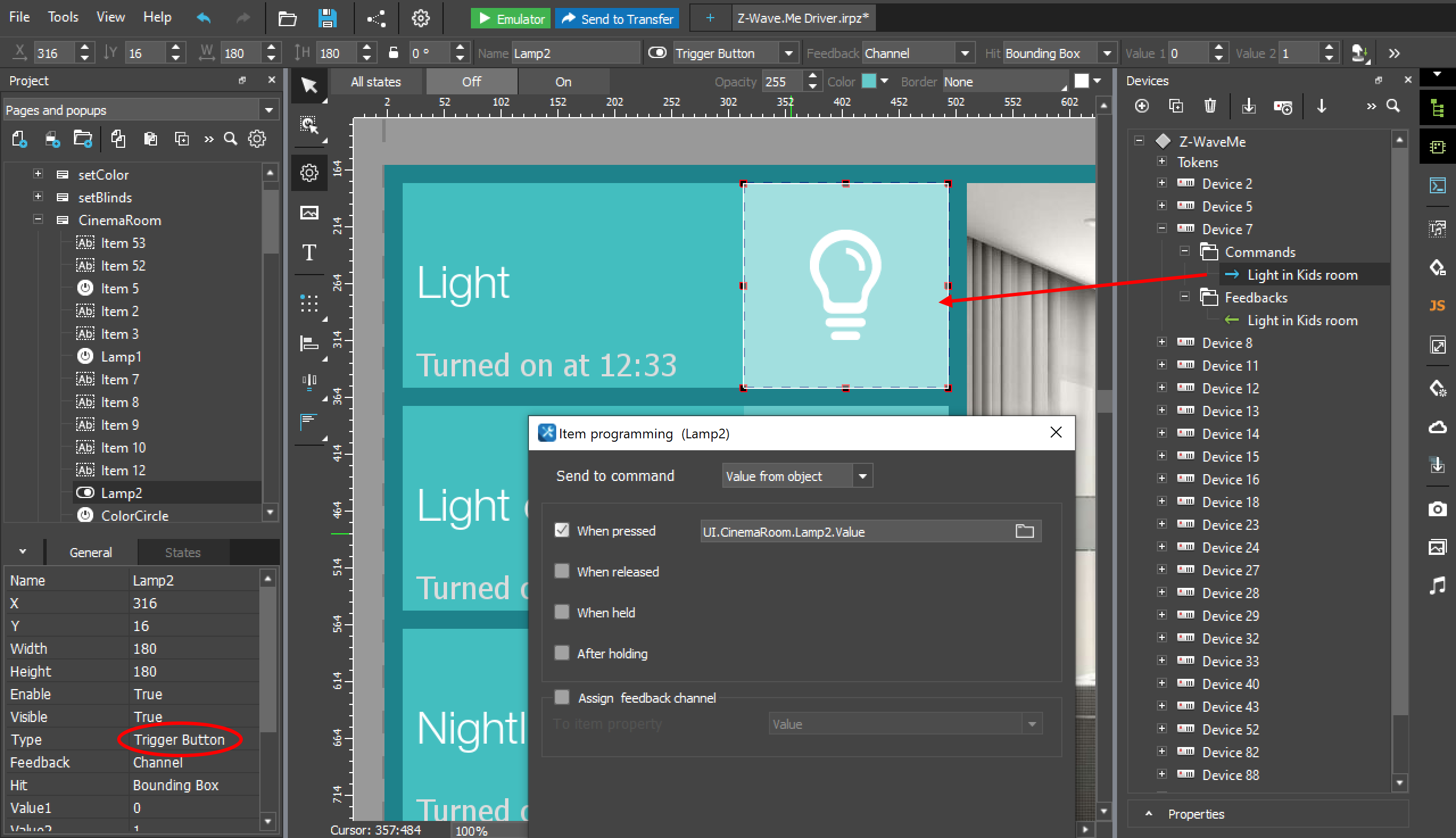
1. To turn on/off the device, create a button with the Trigger Button type. On the device panel, expand the desired device and drag it to the button from the Commands section. In the element programming window that appears, leave the settings unchanged (Value from object, When pressed).
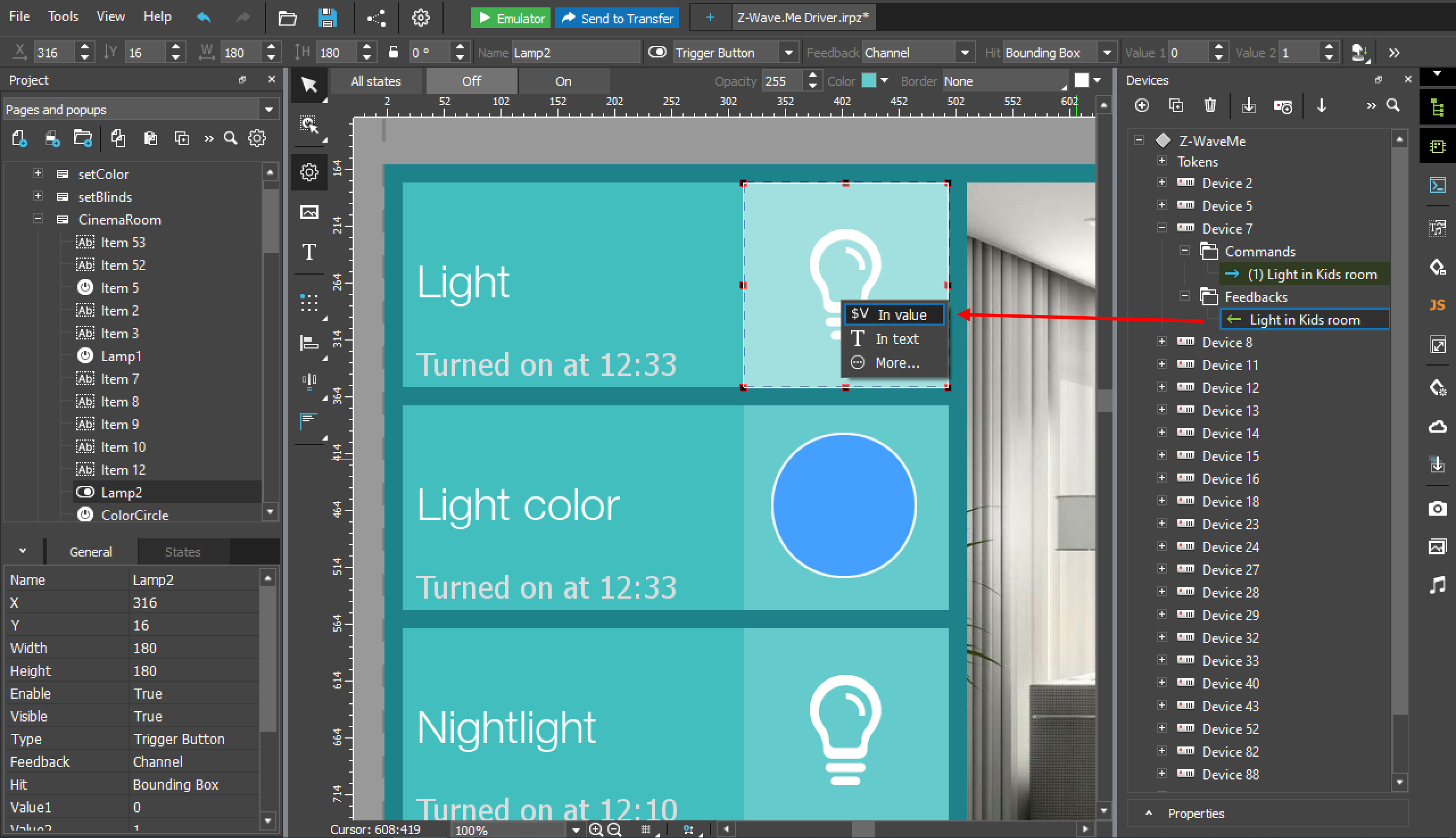
2. To get the status of the device, drag it from the Feedbacks section to the button, in the menu that appears, select $V In value.
Example of setup a widget to control a dimmer

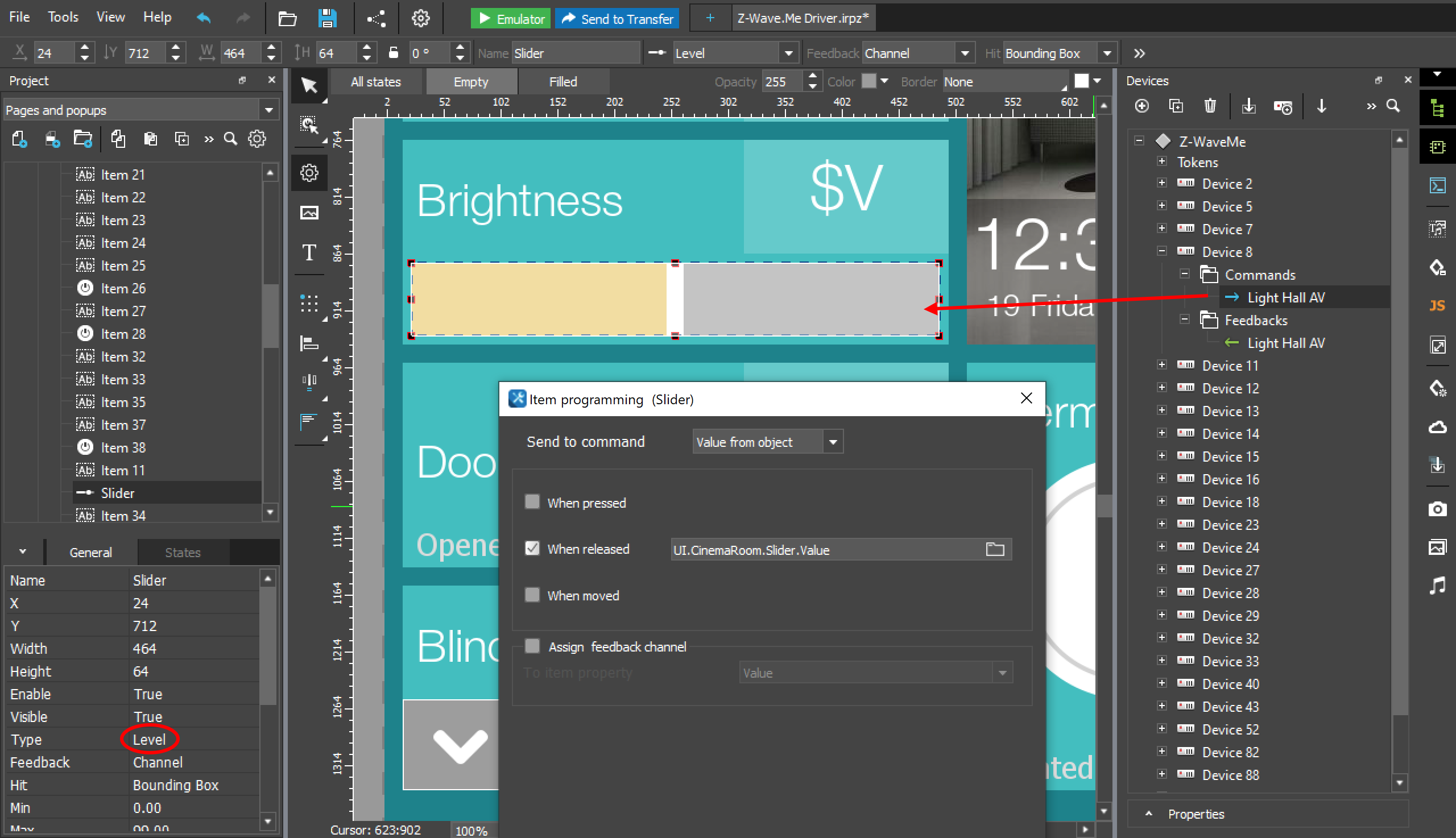
1. Create a slider button with the Level type. Drag the device from the Commands section to the slider. In the item programming window that appears, select When released.
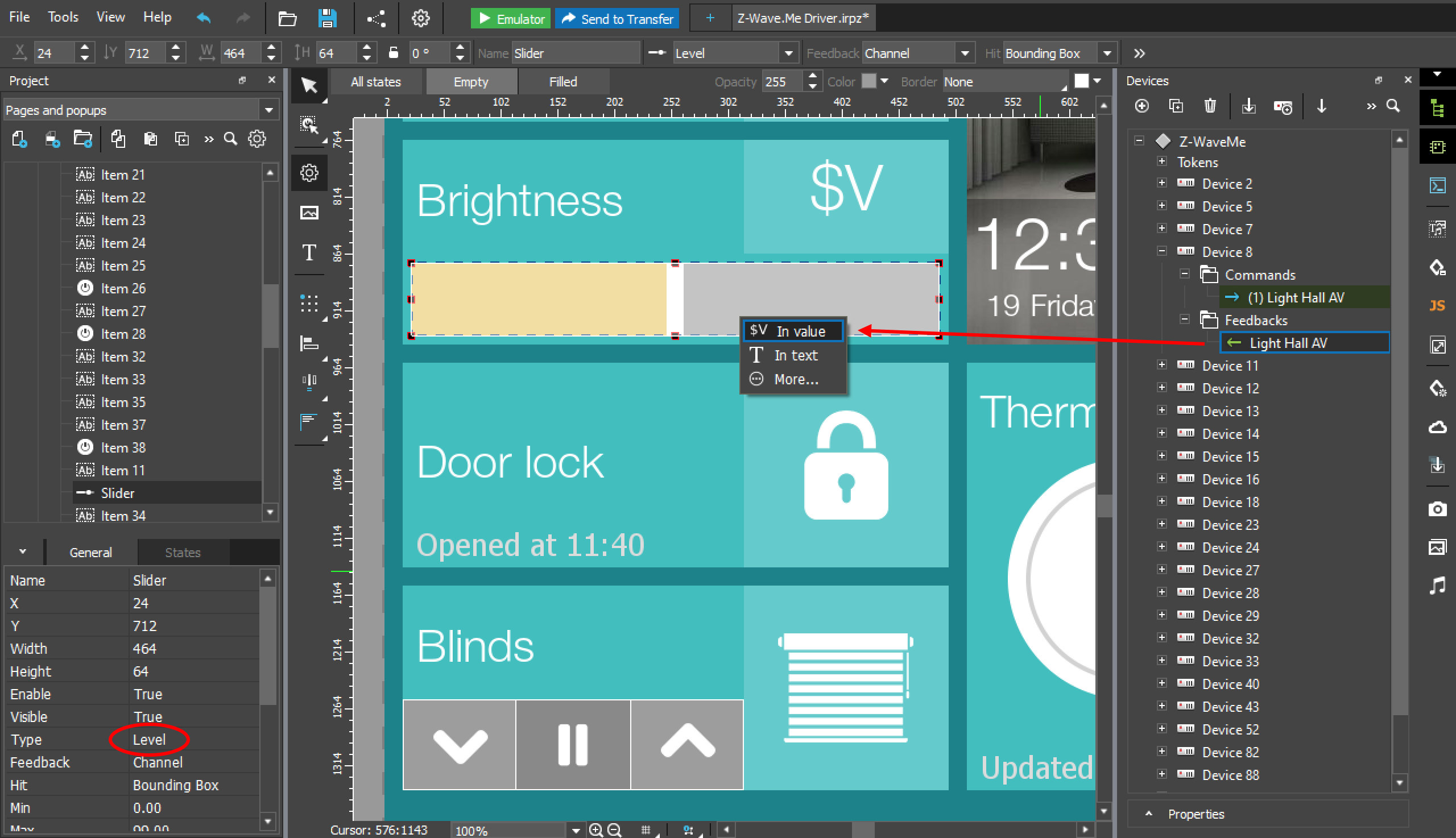
2. In order for the slider to show the real level, you need to get the status of the device. Drag the device from the Feedbacks section to the slider, in the menu that appears, select $V In value.
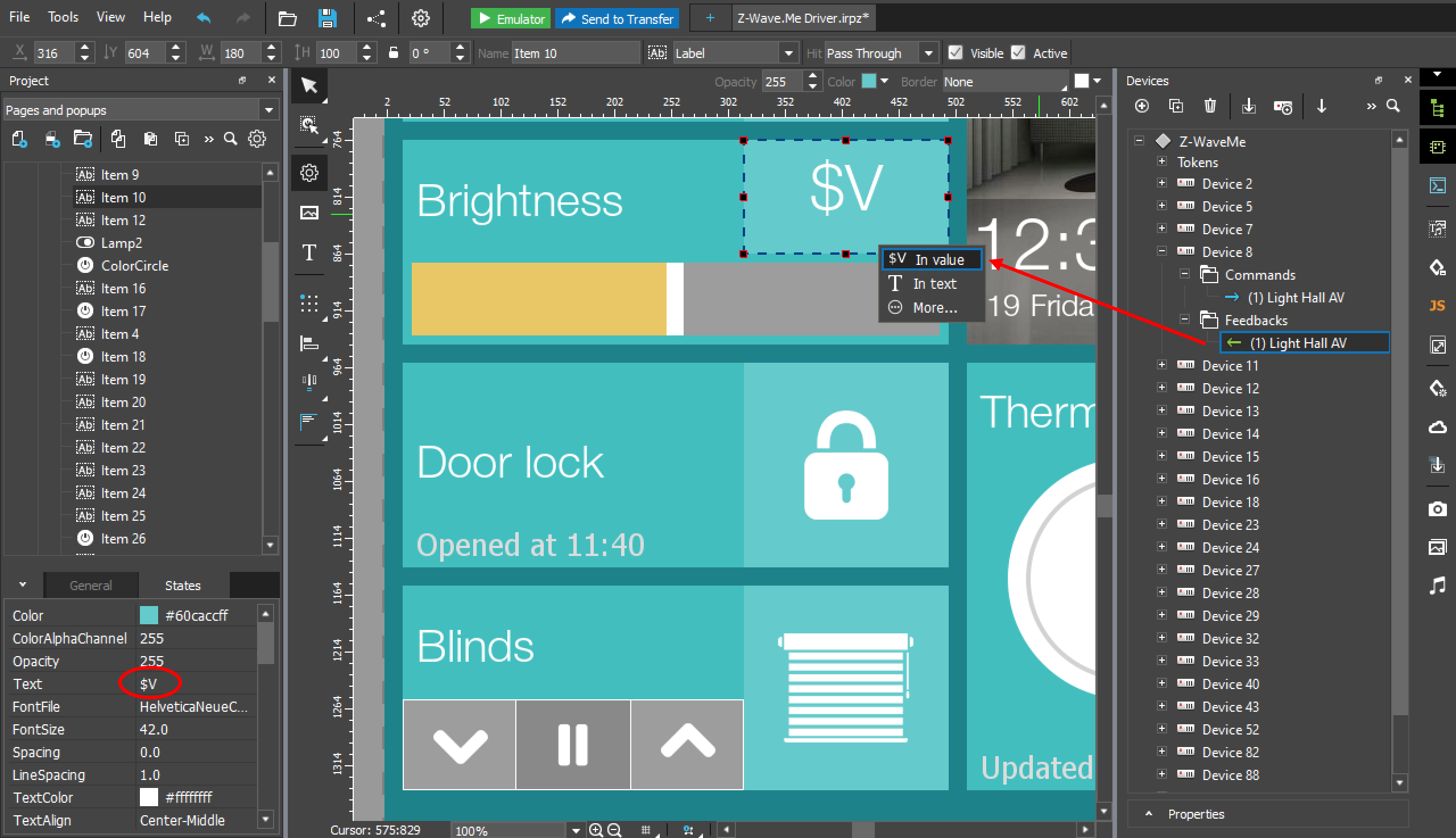
3. To display the level in numbers, create a button with the Label type and write $V in the Text field. Drag the device from the Feedbacks section to the slider, in the menu that appears, select $V In value.
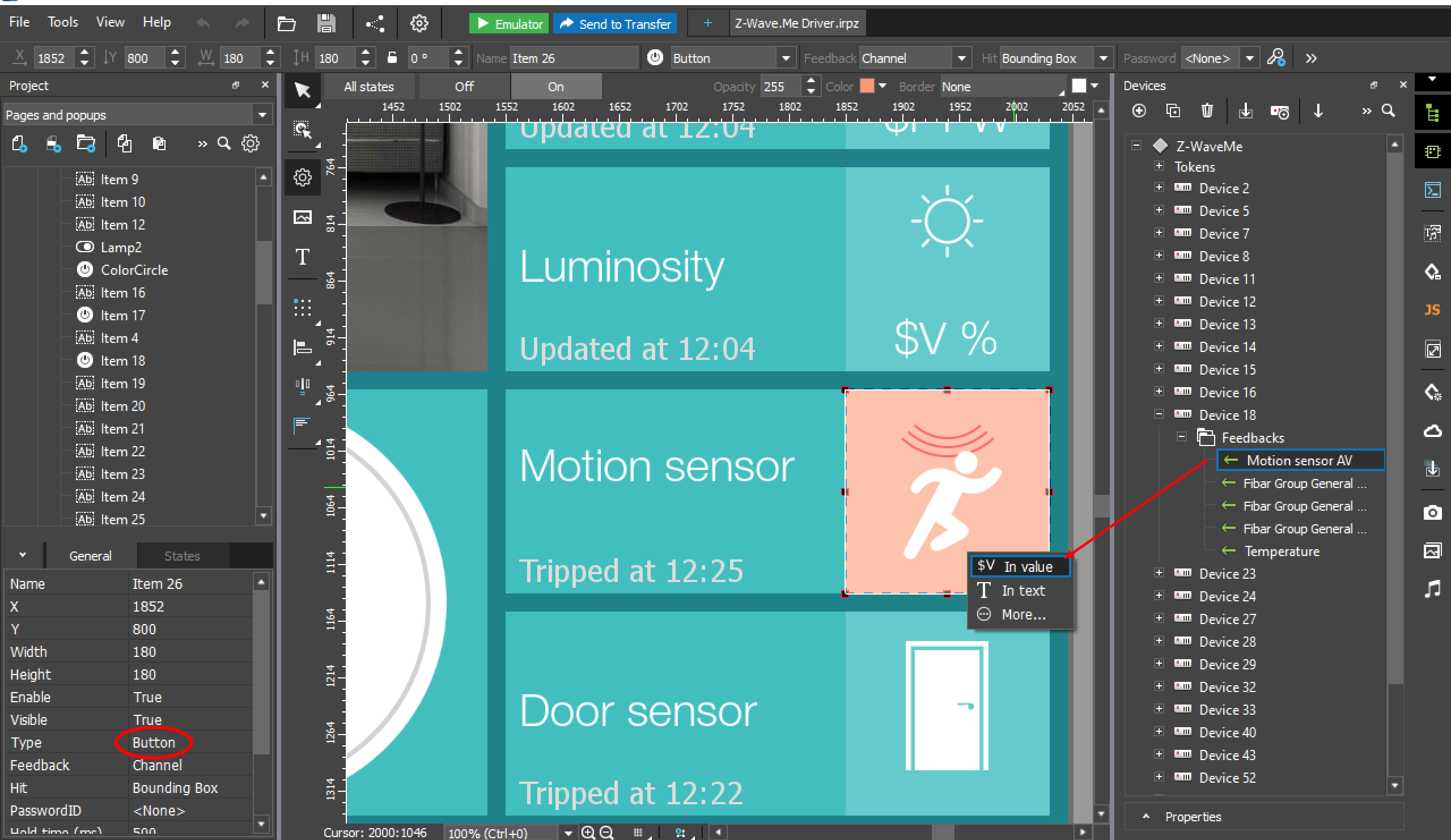
Example of setup a widgets: motion sensor, door sensor and other binary sensors

1. To get the sensor status, drag the device from the Feedbacks section to the Button with the Button type, in the menu that appears, select $V In value.
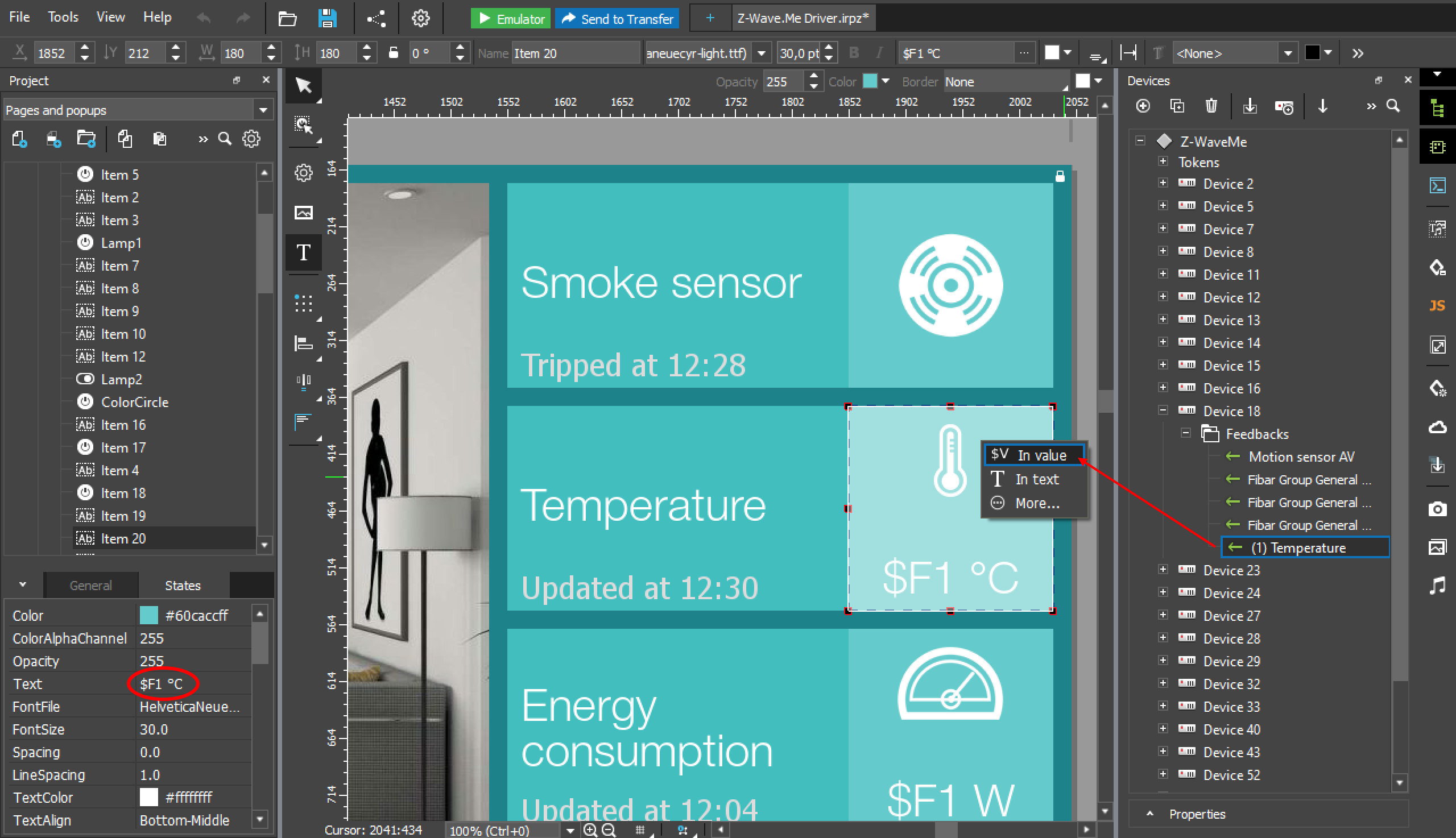
Example of setup a widgets: temperature, light, and other multilevel sensors

1. To display the level in numbers with an accuracy of one decimal place, create a button with the Label type and write $F1 in the Text field. Drag the device from the Feedbacks section to the button, in the menu that appears, select $V In value.
Also check the guide on the iRidi website.

Get your smart device

Purchase on Amazon US
Purchase on Amazon EU
Order directly

Z-Way mobile app

Z-Way for iOSZ-Way for Android

Z-Way license for UZB

Buy a Z-Way license for your UZB1 dongle in three clicks.

Buy a Z-Way license

Did you know ?

that the RaZberry shield runs on all Raspberry Pi versions that have the GPIO connector such as Raspberry Pi 1, 2, 3 B, 3 B+, 4, CM4 and 5. It is even possible to connect it to an Orange Pi.

Support

Contact Z-Wave.Me support team

Get help

Follow us:

Z-Wave.Me

Smart Systems Distribution Sàrl

info@z-wave.me

Products & Services

  • RaZberry
  • Z-Uno
  • Z-Way
  • Catalogue
  • Where to buy
  • Support
  • Contacts

©  2009 — 2026  Z-Wave.Me

Privacy Policy

We use cookies to compile and aggregate data about site traffic and site interaction so that we can offer better site experiences and tools in the future. Privacy Policy

Получите консультацию специалистов

Ответим в течение 15 минут

CAPTCHA →

Refresh CAPTCHA

Send